matplotlib 使用
1. 基本使用
绘制 :
python
import matplotlib.pyplot as plt
import numpy as np

x = np.linspace(-1, 1, 50)
y = 2 * x + 1
plt.plot(x, y)
plt.show()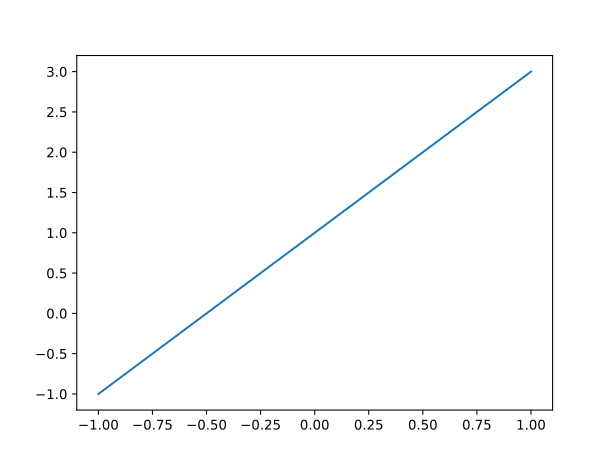
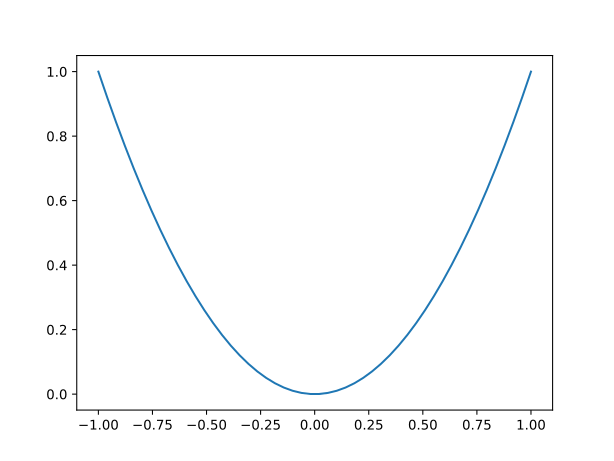
改动这一句,y = x ** 2,绘制如下:
2. figure 图像
python
import matplotlib.pyplot as plt
import numpy as np

x = np.linspace(-1, 1, 50)
y1 = 2 * x + 1
y2 = x ** 2

plt.figure()
plt.plot(x, y1)

plt.figure()
plt.plot(x, y2)

plt.show()
这会显示两个窗口,分别绘制两个图像。
如果像下面这样,第二个窗口序号为 3,长宽比为 5:8,第二个窗体有两个函数,第二个函数用红色虚线表示:
python
import matplotlib.pyplot as plt
import numpy as np

x = np.linspace(-1, 1, 50)
y1 = 2 * x + 1
y2 = x ** 2

plt.figure()
plt.plot(x, y1)

plt.figure(num=3, figsize=(8, 5))
plt.plot(x, y2)
plt.plot(x, y1, color='red', linewidth=1.0, linestyle='--')

plt.show()
3. 设置坐标轴信息
使用
$...$可以打印 LaTeX 排版,但不同平台表现有差异。
python
import matplotlib.pyplot as plt
import numpy as np

plt.rc('font', family='serif')
x = np.linspace(-3, 3, 50)
y1 = 2 * x + 1
y2 = x ** 2

plt.figure()
plt.plot(x, y2)
plt.plot(x, y1, color='red', linewidth=1.0, linestyle='--')

# 设置坐标轴的范围
plt.xlim((-1, 2))
plt.ylim((-2, 3))

# 坐标轴的名称
plt.xlabel('x label')
plt.ylabel('y label')

# 坐标轴指示标签
new_ticks = np.linspace(-1, 2, 5)
plt.xticks(new_ticks)
plt.yticks([-2, -1.8, -1, 1.22, 3],
           ['really bad', 'bad', 'normal',
            'good', r'$really\ good$'])

plt.show()
你可以设置参数以解决数学字体不一致的问题,建议使用 LaTeX 后端绘制。
python
from matplotlib import rcParams

config = {
    "font.family": 'serif',
    "mathtext.fontset": 'stix',
}
rcParams.update(config)
将轴的两个边线隐藏,并设置轴的位置:
python
import matplotlib.pyplot as plt
import numpy as np

x = np.linspace(-3, 3, 50)
y1 = 2 * x + 1
y2 = x ** 2

plt.figure()
plt.plot(x, y2)
plt.plot(x, y1, color='red', linewidth=1.0, linestyle='--')

# 设置坐标轴的范围
plt.xlim((-1, 2))
plt.ylim((-2, 3))

# 坐标轴的名称
plt.xlabel('x label')
plt.ylabel('y label')

# 坐标轴指示标签
new_ticks = np.linspace(-1, 2, 5)
plt.xticks(new_ticks)
plt.yticks([-2, -1.8, -1, 1.22, 3],
           ['really bad', 'bad', 'normal',
            'good', 'really good'])

# gca: get current axis
ax = plt.gca()
ax.spines['right'].set_color('none')
ax.spines['top'].set_color('none')

ax.xaxis.set_ticks_position('bottom')
ax.yaxis.set_ticks_position('left')

ax.spines['bottom'].set_position(('data', 0))
ax.spines['left'].set_position(('data', 0))

plt.show()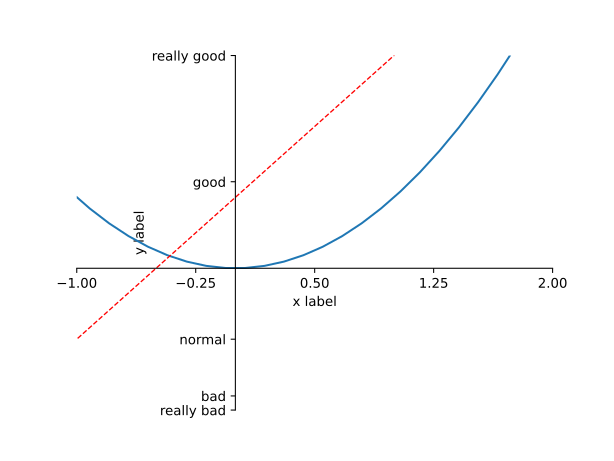
set_position 有很多设置方式 'data' 只是其中一个。还有例如 'outward'、'axes' 等。
4. 图例
显示默认的图例,要加上标签 label='...':
python
import matplotlib.pyplot as plt
import numpy as np

x = np.linspace(-3, 3, 50)
y1 = 2 * x + 1
y2 = x ** 2

plt.figure()
plt.plot(x, y2, label='down')
plt.plot(x, y1, color='red',
         linewidth=1.0, linestyle='--', label='up')

# 默认图例
plt.legend()

plt.xlim((-1, 2))
plt.ylim((-2, 3))

plt.show()
自定义图例:
python
import matplotlib.pyplot as plt
import numpy as np

x = np.linspace(-3, 3, 50)
y1 = 2 * x + 1
y2 = x ** 2

plt.figure()
l1, = plt.plot(x, y2, label='down')
l2, = plt.plot(x, y1, color='red',
         linewidth=1.0, linestyle='--', label='up')

# 默认图例
plt.legend(handles=[l1, l2], labels=['a', 'b'], loc='best')

plt.xlim((-1, 2))
plt.ylim((-2, 3))

plt.show()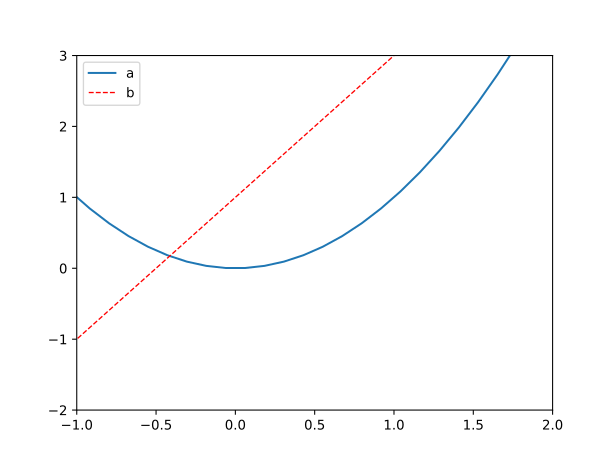
5. 注解
图片中添加注解(公式部分使用了 LaTeX 后端):
python
import matplotlib.pyplot as plt
import numpy as np

plt.rc('text', usetex=True)
plt.rc('font', family='serif')

x = np.linspace(-3, 3, 50)
y1 = 2 * x + 1

plt.figure()
plt.plot(x, y1)

# 设置坐标轴的范围
plt.xlim((-2, 3))
plt.ylim((-3, 4))

# gca: get current axis
ax = plt.gca()
ax.spines['right'].set_color('none')
ax.spines['top'].set_color('none')

ax.xaxis.set_ticks_position('bottom')
ax.yaxis.set_ticks_position('left')

ax.spines['bottom'].set_position(('data', 0))
ax.spines['left'].set_position(('data', 0))

x0 = 1
y0 = 2 * x0 + 1
plt.scatter(x0, y0, s=50, color='b')

# 黑色虚线 `k--`,线宽度 2.5
plt.plot([x0, x0], [y0, 0], 'k--', lw=2.5)

plt.annotate(r'$2x+1={}$'.format(y0),
             xy=(x0, y0),           # 坐标
             xycoords='data',       # xy 的含义,基准值
             xytext=(30, -30),      # 文本位置
             textcoords='offset points', # 文本偏移量
             fontsize=16,           # 文本大小
             arrowprops={           # 属性:箭头、弧度
                 'arrowstyle': '->',
                 'connectionstyle': 'arc3, rad=.2'
             })

plt.show()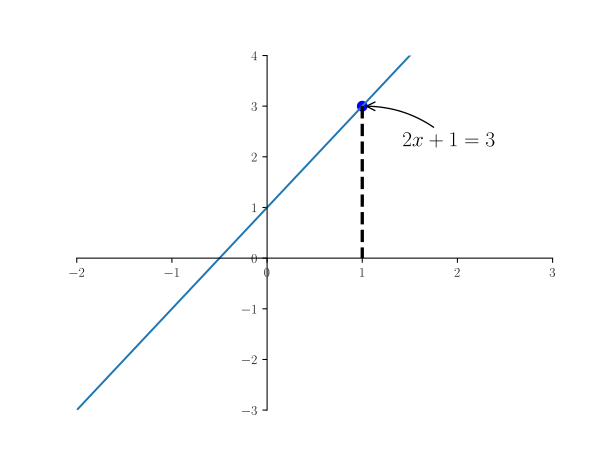
使用 text 指令绘制(公式仍然使用了 LaTeX 后端):
python
import matplotlib.pyplot as plt
import numpy as np

plt.rc('text', usetex=True)
plt.rc('font', family='serif')

x = np.linspace(-3, 3, 50)
y1 = 2 * x + 1

plt.figure()
plt.plot(x, y1)

# 设置坐标轴的范围
plt.xlim((-2, 3))
plt.ylim((-3, 4))

# gca: get current axis
ax = plt.gca()
ax.spines['right'].set_color('none')
ax.spines['top'].set_color('none')

ax.xaxis.set_ticks_position('bottom')
ax.yaxis.set_ticks_position('left')

ax.spines['bottom'].set_position(('data', 0))
ax.spines['left'].set_position(('data', 0))

x0 = 1
y0 = 2 * x0 + 1
plt.scatter(x0, y0, s=50, color='b')

# 黑色虚线 `k--`,线宽度 2.5
plt.plot([x0, x0], [y0, 0], 'k--', lw=2.5)

plt.text(-1.7, 2, r'$\mu\ \sigma_i\ \alpha_t$',
         fontdict={'size': 16, 'color': 'r'})

plt.show()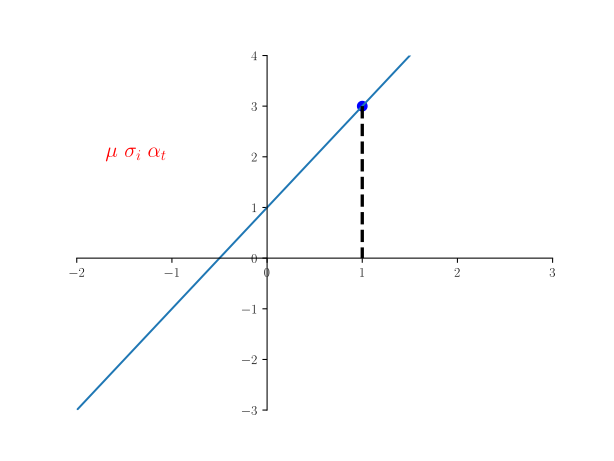
6. tick 透明度
python
import matplotlib.pyplot as plt
import numpy as np

plt.rc('text', usetex=True)
plt.rc('font', family='serif')

x = np.linspace(-3, 3, 50)
y = 0.1 * x

plt.figure()
plt.plot(x, y, lw=10, zorder=1)
plt.ylim((-2, 2))

ax = plt.gca()
ax.spines['right'].set_color('none')
ax.spines['top'].set_color('none')

ax.xaxis.set_ticks_position('bottom')
ax.spines['bottom'].set_position(('data', 0))
ax.yaxis.set_ticks_position('left')
ax.spines['left'].set_position(('data', 0))

for label in ax.get_xticklabels() + ax.get_yticklabels():
    label.set_fontsize(12)
    label.set_bbox({
        'facecolor': 'white',
        'edgecolor': 'None',
        'alpha': 0.7
    })

ax.set_zorder(2)

plt.show()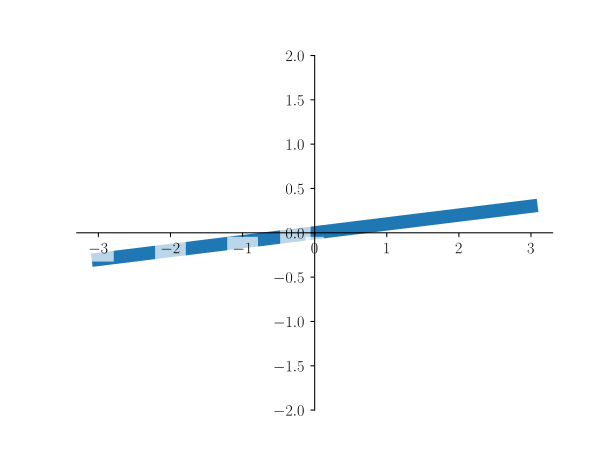
还有方法:
python
# 直接设置透明度
plt.plot(x, y, label='up', color='blue', lw=10, alpha=0.6)
7. scatter 散点图
python
8. bar 柱状图
python
9. contours 等高线图
python
10. image 图片
python
11. 3D 数据
python
12. subplot 多个绘图
python
13. subplot 分隔显示
python
14. 图中图
python
15. 次坐标轴
python
16. 动画(Animation)
python
附录:使用 LaTeX
参考 https://matplotlib.org/2.0.2/users/usetex.html 参考 https://www.jianshu.com/p/7d305688ebd0 参考 https://zhuanlan.zhihu.com/p/118601703
如果使用 LaTeX 作为后端,要求电脑中安装 LaTeX,LaTeX 渲染更精细、更标准,同时也更慢。
快速使用:
python
# 如果需要使用默认后端(内置 LaTeX 引擎)
from matplotlib import rcParams

config = {
    "font.family":'serif',
    "font.size": 20,
    "mathtext.fontset":'stix',
    "font.serif": ['SimSun'],
}
rcParams.update(config)

# 使用 LaTeX 作为后端渲染
plt.rc('text', usetex=True)
plt.rc('font', family='serif')
使用默认布局引擎渲染中文
python
import matplotlib.pyplot as plt
from matplotlib import rcParams

config = {
    "font.family":'serif',
    "font.size": 20,
    "mathtext.fontset":'stix',
    "font.serif": ['SimSun'],
}
rcParams.update(config)

plt.title(r'宋体 $\mathrm{Times \; New \; Roman}'
          r'\/\/ \alpha_i > \beta_i$')
plt.axis('off')
plt.show()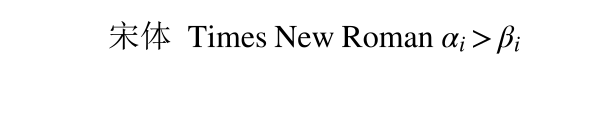
使用自定义的图例
python
import matplotlib.pyplot as plt
import numpy as np

x = np.linspace(-3, 3, 50)
y1 = 2 * x + 1
y2 = x ** 2

plt.figure()
l1, = plt.plot(x, y2, label='down')
l2, = plt.plot(x, y1, color='red',
         linewidth=1.0, linestyle='--', label='up')

# 默认图例
plt.legend(handles=[l1, l2], labels=['a', 'b'], loc='best')

plt.xlim((-1, 2))
plt.ylim((-2, 3))

plt.show()
使用 LaTeX 作为后端渲染
这部分要求电脑上安装有 LaTeX。
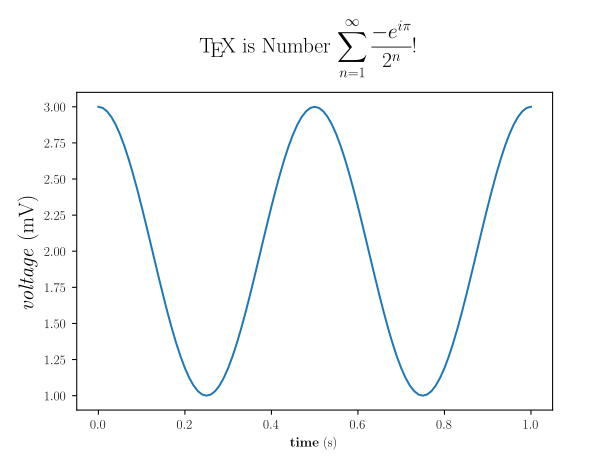
使用 LaTeX 渲染下面的内容
python
import numpy as np
import matplotlib.pyplot as plt

t = np.arange(0.0, 1.0 + 0.01, 0.01)
s = np.cos(4 * np.pi * t) + 2

# 使用 LaTeX 作为后端绘制
plt.rc('text', usetex=True)
plt.rc('font', family='serif')

plt.plot(t, s)

# 绘制标签
plt.xlabel(r'\textbf{time} (s)')
plt.ylabel(r'\textit{voltage} (mV)', fontsize=16)
plt.title(r"\TeX\ is Number "
          r"$\displaystyle\sum_{n=1}^"
          r"\infty\frac{-e^{i\pi}}{2^n}$!",
          fontsize=16)

# 为这个 **可笑的** 大标题腾出空间
plt.subplots_adjust(top=0.8)

plt.show()